
Configure, Issue, and Verify Certificates
Review certificate status, completion requirements, public verification privacy, and generated-content approval.
In this guide2 sections and article resources
Article resources
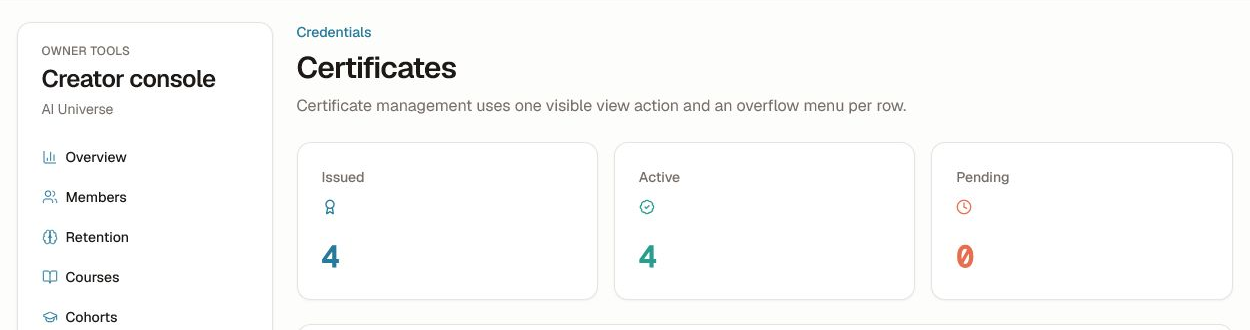
Open Creator console → Certificates to review issued, active, and pending credentials. Member-level rows contain personal data; keep them out of shared documentation.
Configure issuance
- Open the course certificate settings.
- Confirm required lessons, passing quiz rules, completion logic, and any cohort dependency.
- Review the template, signatory, course name, learner name, date, and credential identifier.
- Choose the default verification visibility.
- Complete the course with a test learner before enabling automatic issuance.
Use Settings → AI → Certificates to govern public verification, default member-name privacy, and whether generated quizzes require review before publication. Public verification can be indexable; initials or restricted visibility reduce exposure. Choose the privacy default intentionally and save the settings.
Operate and troubleshoot
Open a pending credential to find the unmet requirement; do not mark progress complete merely to force issuance. If a certificate is missing, compare the course revision, enrollment, progress, quiz pass state, and certificate enablement.
Revoke, replace, or reissue only with a documented reason. Confirm the credential, learner, course, and visibility before the action. A replacement should preserve the audit trail and invalidate an obsolete public verification when required.
Was this helpful?
Your response helps us improve this guide.