
Create, Preview, and Review Quizzes
Add a draft quiz, build questions and answers, preview the learner experience, and use analytics after launch.
In this guide2 sections and article resources
Article resources
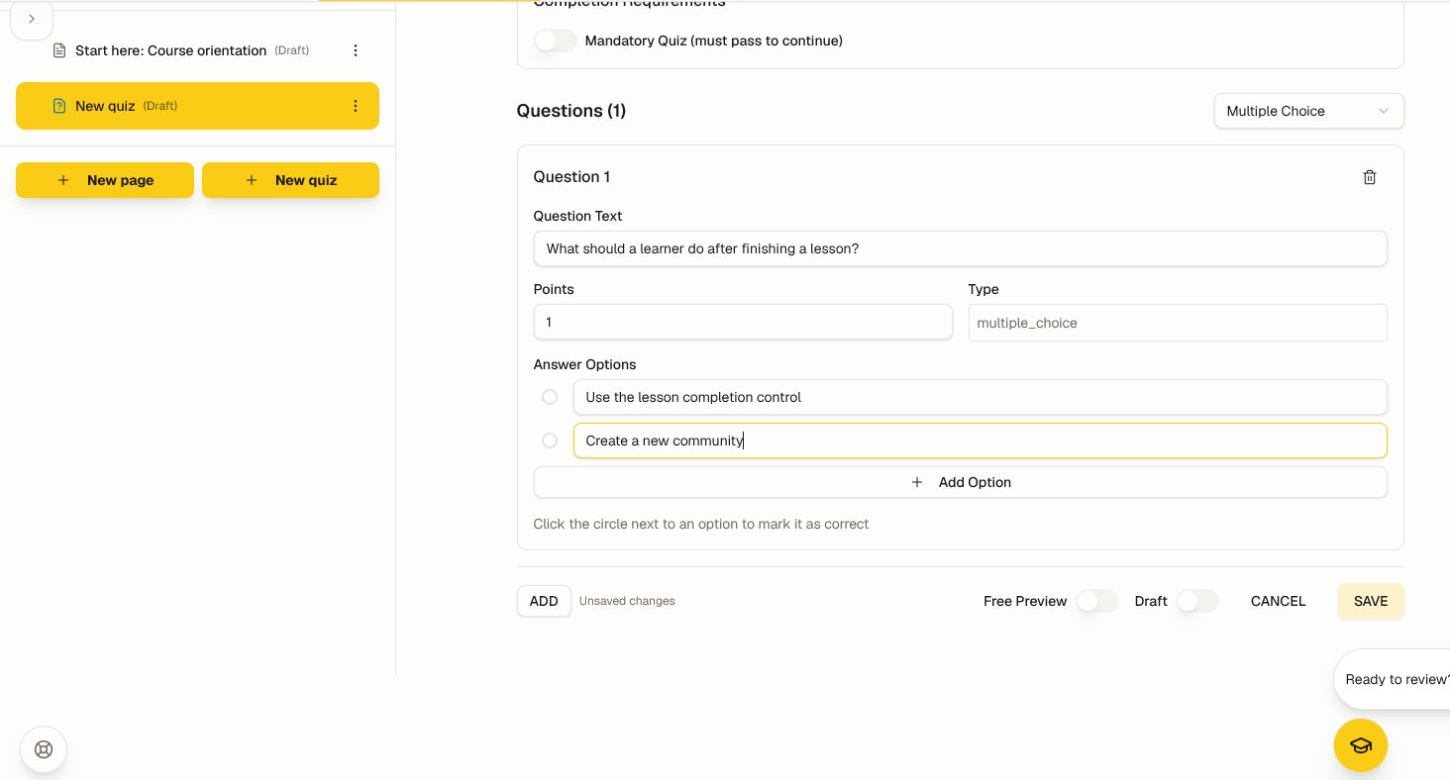
Open a draft course and choose New quiz. Create assessments against explicit learning objectives, not merely lesson length.
Build and preview
- Enter a clear quiz title and optional instructions.
- Keep the quiz in draft while building it.
- Add a question and choose the interaction type available for the course.
- Write one unambiguous prompt, plausible choices, the correct response or rubric, and feedback that teaches.
- Configure points, attempts, passing behavior, randomization, and required status where available.
- Save and repeat only for objectives that need evidence.
- Preview from the first instruction through submission, feedback, retry, progress, and completion.
Review quality after launch
Open Analytics for aggregate performance, attempts, and missed-question signals where available. Open Settings → AI → Item Health when the learner model has enough real practice responses. A very easy, very hard, low-discrimination, or thin-data flag is a review prompt, not an automatic edit.
Do not publish a generated question until a qualified reviewer verifies the source, wording, answer, feedback, accessibility, and locale. When correcting a live assessment, preserve the revision and consider how existing attempts, completion, certificates, and cohort outcomes should be treated.
Was this helpful?
Your response helps us improve this guide.