
Review the Unified Inbox and Agent Conversation History
Distinguish peer messages from AI conversations, inspect read-only agent history, and continue in the correct surface.
In this guide2 sections and article resources
Article resources
Open the community Inbox to see the conversations addressed to you in a newest-first list. It is not a shared support queue or a shortcut around conversation authorization.
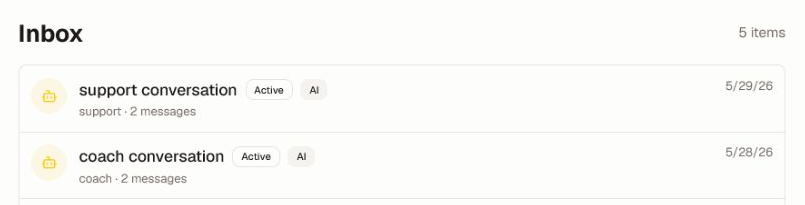
Choose the correct conversation
- Use the icon and AI badge to distinguish an agent conversation from a peer direct message.
- Review the title, status, message count, and last-activity date before opening an item.
- Open a peer thread to read and reply in the mounted chat.
- Open an AI conversation to inspect its ordered history, persona, status, tool/result context shown by the UI, and timestamps. The history detail is read-only.
- Use the Agent chat link when you need to continue an AI conversation interactively.
An owner/admin may open another member's agent conversation only when the server authorization and direct route permit it. Role alone does not make all conversations visible. Do not attempt guessed conversation identifiers.
Protect and troubleshoot
Titles, previews, prompts, tool results, and messages can contain private information. Do not copy them into public posts, screenshots, Help, or a bug report without redaction and an approved purpose.
If a conversation is missing, confirm the signed-in account, community, conversation type, last-activity ordering, and authorization. If a turn appears stuck, preserve the conversation/run identifier and time, then use the available retry or recovery control once. Do not repeatedly submit the same message or external action.
Use the moderation and escalation process for safety or legal concerns. Continuing the conversation can change external state when tools are enabled; review the destination and pending action before sending.
Was this helpful?
Your response helps us improve this guide.