
Find Members, Follow Classmates, and Start a Direct Message
Search a community directory, filter by role or activity, view profiles, follow classmates, and control private messaging.
In this guide2 sections and article resources
Article resources
Choose Members in a community to open its directory.
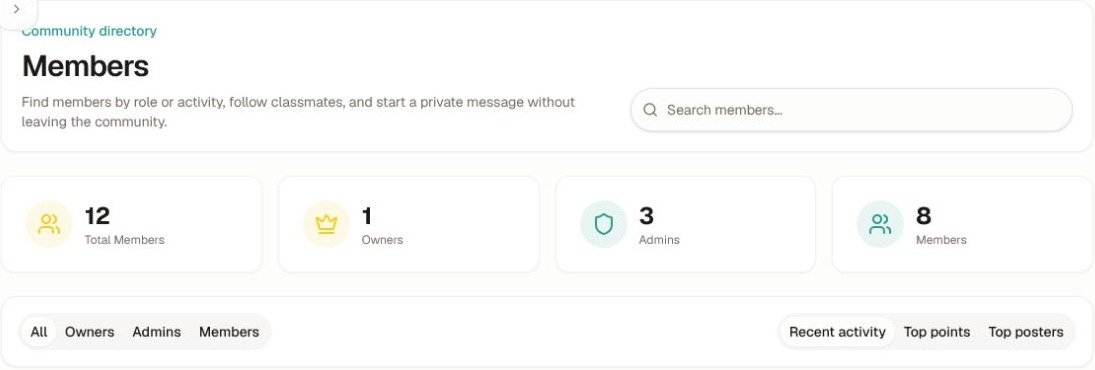
Find the right person
- Search by the name or profile information the member has made visible.
- Use All, Owners, Admins, or Members to filter by role.
- Sort by Recent activity, Top points, or Top posters.
- Open View Profile to review the public information and communities that person allows others to see.
- Choose Follow when available to make their activity easier to find.
- Choose Message to start a private thread when both accounts and the community allow messaging.
Control who can message you
Open Settings → Notifications → Chat. You can control chat sounds, offline email alerts, and which communities may send you private messages. Turning chat off for one community does not remove your membership.
Use Settings → Privacy to review blocked users. Blocking prevents direct contact and can limit activity visibility on supported surfaces. Report harassment, impersonation, or unsafe behavior to the community admin in addition to blocking the account.
Direct messages are private to their participants, but you should still avoid sending passwords, payment details, authentication codes, or another person's private information.
Was this helpful?
Your response helps us improve this guide.