Use the Community Feed, Posts, Polls, and Replies
Read updates, filter discussions, publish a post, vote in polls, and respond safely to classmates.
In this guide2 sections and article resources
Article resources
Open a community and choose Community to see its feed. Category buttons such as General Discussion, Questions, or Feature Request filter posts without leaving the page.
Publish a post
- Choose Share something with community name….
- Confirm the category beside posting to. Choose another category when the topic belongs elsewhere.
- Add a concise Title and write the context, question, or update in the message area.
- Optionally add a Photo, Video, Poll, or Attachment.
- Review the content and choose Post. The button stays unavailable until the required fields are complete.
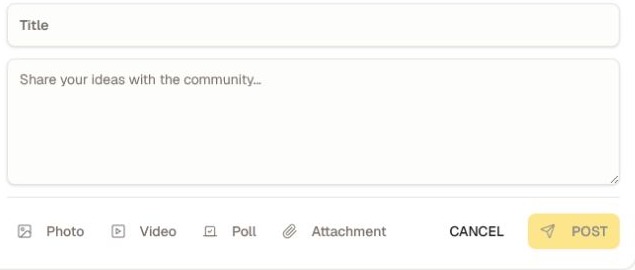
For a poll, ask one clear question and make the answer choices distinct. Check any multiple-choice or closing settings before publishing because they determine how members can vote.
Respond to a discussion
Use the reaction control for a quick acknowledgment, open the post to comment, or choose Share when sharing is enabled. Keep replies relevant to the original topic and follow the community's rules.
Post menus can include edit, delete, pin, moderation, or report actions depending on your role and ownership of the post. Report unsafe or rule-breaking content to the community team; do not repost it or include private information in a public reply.
Was this helpful?
Your response helps us improve this guide.