
Search Within a Community
Find members, posts, events, and courses from the community header without browsing every tab.
In this guide2 sections and article resources
Article resources
The Search field in a community header searches that community—not every membership on your account. Check the community name first, then select Search.
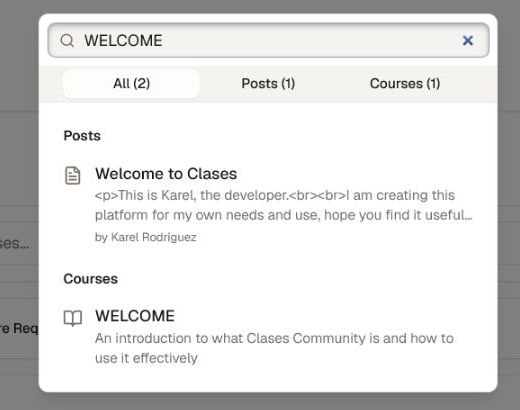
Find a result
- Enter at least three characters from a member name, post title or text, event, course title, or description.
- Wait for the result counts to update.
- Use All, Members, Posts, Events, or Courses when that result type is available.
- Select a result to open its profile or the matching community page.
Only result types with matches appear as tabs. Search returns a limited set of the closest accessible matches, so use a distinctive phrase when a broad word produces too many results.
If a result is missing
- Confirm that you are searching inside the correct community.
- Try a shorter, correctly spelled keyword of at least three characters.
- Search by a course or event title instead of a description when possible.
- Open Members, Calendar, or Classroom and use that page's filters when you need a wider list.
Search respects your account's access. A private profile, removed post, unpublished course, past event, or item outside your membership may not appear. Switching communities starts a separate search, and clearing the field removes the current results.
Was this helpful?
Your response helps us improve this guide.