
Preview and Enroll in a Course
Review a public course page, sign in with the right account, complete enrollment, and confirm the course in Classroom.
In this guide4 sections and article resources
Article resources
A public course page lets you review a course before opening its signed-in classroom. It can show the access type, lesson and quiz counts, curriculum, instructor, requirements, testimonials, and enrollment action.
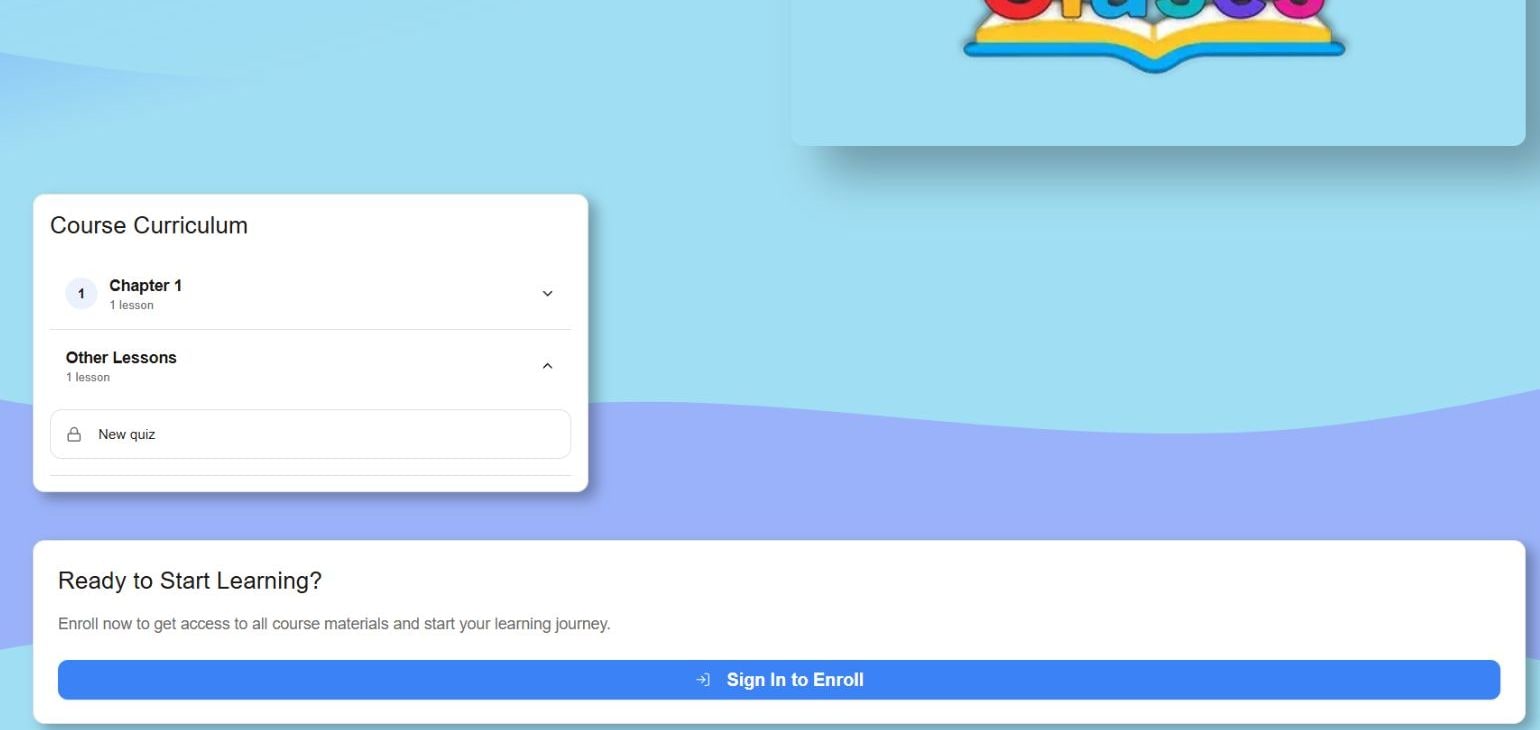
Review the course
- Confirm that the address begins with
clases.communityand that the course and community names are the ones you expect. - Review whether the course is free, paid, included with a membership, or restricted by another access rule.
- Expand curriculum sections to compare units, lessons, videos, and quizzes.
- Read the requirements, instructor information, and purchase or refund terms supplied by the creator.
A curriculum item can appear locked before enrollment. That does not by itself mean the course is unavailable.
Preview a free lesson
When a curriculum item is marked as a free preview, select it to open the public lesson page before enrolling. Use the full-course action on that page to return to the course overview and enrollment options.
If you are already signed in and enrolled, Clases can redirect the preview link to the full member lesson. When no item is marked as a preview, the creator has not published a public lesson for that course; it does not mean your signed-in access is broken.
Enroll with the right account
- Choose Sign In to Enroll, Enroll, or the purchase action shown.
- Sign in with the account that already holds your community memberships. Create an account only if you do not have one.
- Complete any free-enrollment confirmation, membership selection, or secure checkout.
- Return to the community and open Classroom. The course should now appear for that account.
- Open the course and confirm its access, curriculum, and progress state before starting.
Do not repeat a checkout when the redirect is slow. Check My Groups, Classroom, My Learning, and Settings → Payments → Payment History first.
Cohorts and access problems
If the creator offers dated cohorts, compare their seats, schedule, time zone, and price before choosing one. See Join a Course Cohort and Follow the Weekly Pace for the guided enrollment flow.
A missing or unavailable landing page can mean that the course was unpublished, its link changed, enrollment closed, or your account lacks the required membership. Return to the community's Classroom or contact its admin with the course name and link. Never send a password, full card number, or verification code.
Was this helpful?
Your response helps us improve this guide.