
Set Notifications, Chat, Language, Theme, and WhatsApp
Control alerts, messaging permissions, sounds, display language, appearance, and supported channel connections.
In this guide3 sections and article resources
Article resources
Open Settings to manage account-wide preferences. The current settings design groups related controls into sections and tabs.
Notifications and chat
Choose Notifications → Notifications to review email and browser-push delivery, subscribed devices, messaging-channel links, sales sounds, and learning or tutor sounds.
Choose Notifications → Chat to control:
- sound and tab alerts for new messages;
- email notifications while you are offline;
- which joined communities may send you direct messages; and
- blocked-user status.
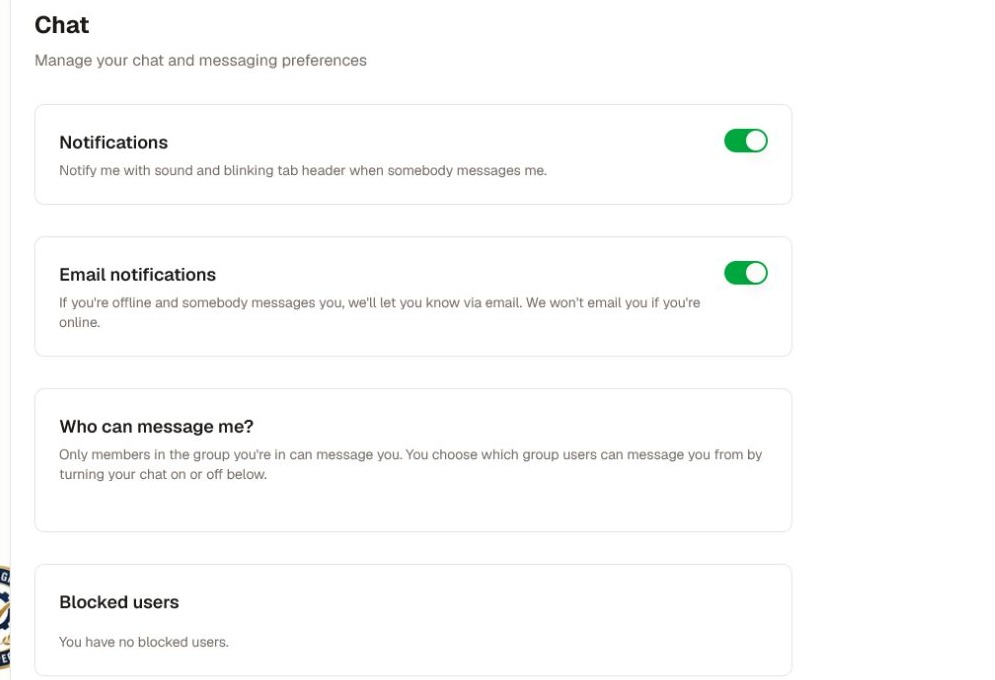
If notification preferences remain in a loading state, refresh the page once. The Chat tab and sound controls can still be managed separately; retry delivery preferences later instead of repeatedly changing the same switch.
Language and theme
Choose Language → Language, select the display language, and save the change. This setting affects menus, buttons, emails, and the AI tutor.
Choose Language → Theme and select Light, Dark, or System. System follows the appearance setting of this device.
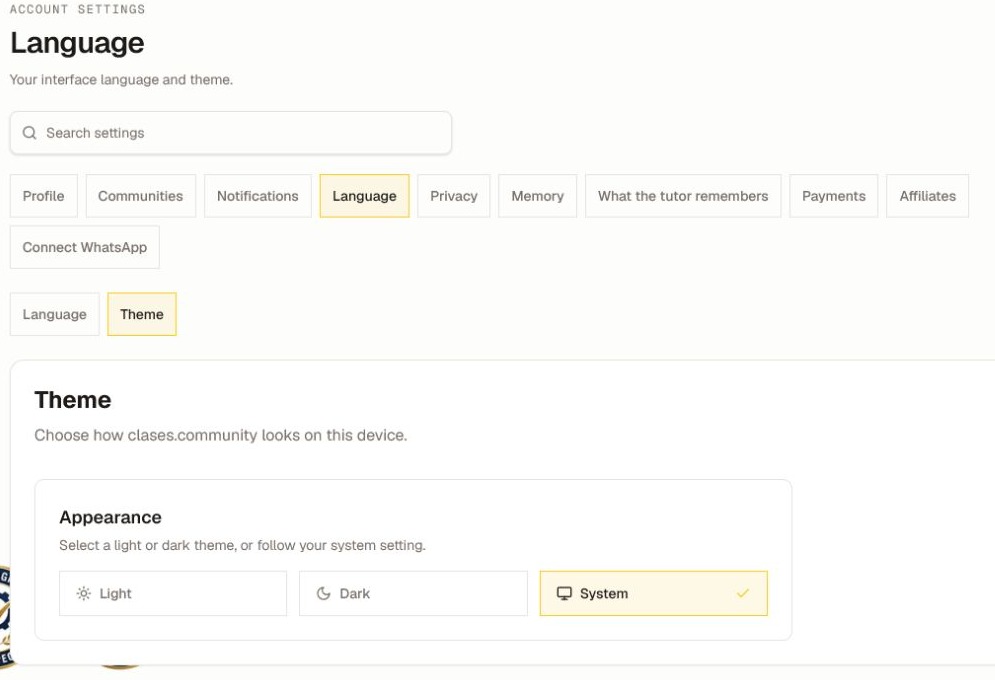
WhatsApp and other messaging channels
Choose Connect WhatsApp when a community has the channel enabled. Generate the short pairing code, open WhatsApp, and send the code exactly as instructed. The channel page can also show other supported messaging connections.
If no eligible community appears, ask its admin whether that channel is enabled. Never paste a pairing code into a public post or send it to an unrelated contact.
Was this helpful?
Your response helps us improve this guide.