
Manage Your Profile, Account, Privacy, and Security
Update public profile details, protect account access, block users, and set up two-factor authentication.
In this guide3 sections and article resources
Article resources
Open Settings for account-level changes. Do not try to edit account information from a community's member card.
Profile and account
Choose Profile → Profile to review your avatar, first and last name, profile URL, bio, location, time zone, links, and community-membership visibility. Save only the information you intend other members to see.
Choose Profile → Account for sign-in identity and account-level actions. Name or identity changes can be limited after verification, so review them carefully.
Privacy
Choose Privacy → Privacy to control supported activity visibility and review blocked users.
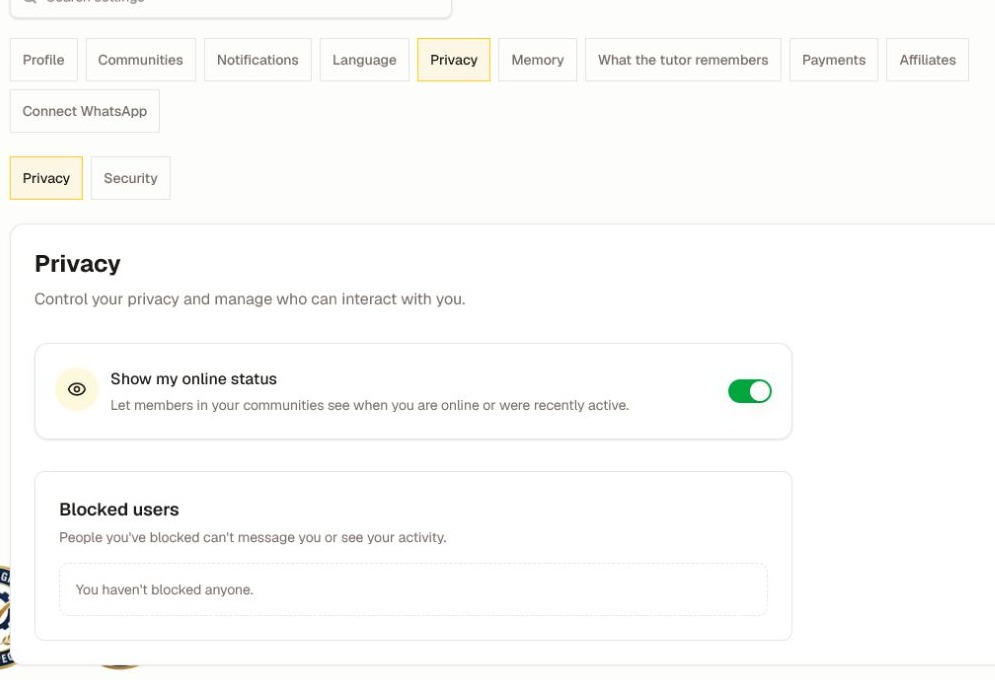
- Show my online status controls whether supported surfaces can show that you are active.
- Blocked users lists accounts you blocked and lets you review that decision.
- Community-membership visibility remains under Profile because it affects what your public profile shows.
Security and two-factor authentication
Choose Privacy → Security. Use the available password, session, or two-factor authentication controls to protect the account.
When two-factor setup is offered, follow the authenticator-app steps, verify the code in the secure form, and store recovery information somewhere only you control. Never send an authenticator code, password, reset link, or recovery code to a community admin, member, or tutor.
If you suspect unauthorized access, change the password from a trusted device, review active security controls, and contact platform support.
Was this helpful?
Your response helps us improve this guide.